
Fireworks Video Effect for a Rhythmic Party Opening
Create a Fireworks Video Effect
History
Loading history…
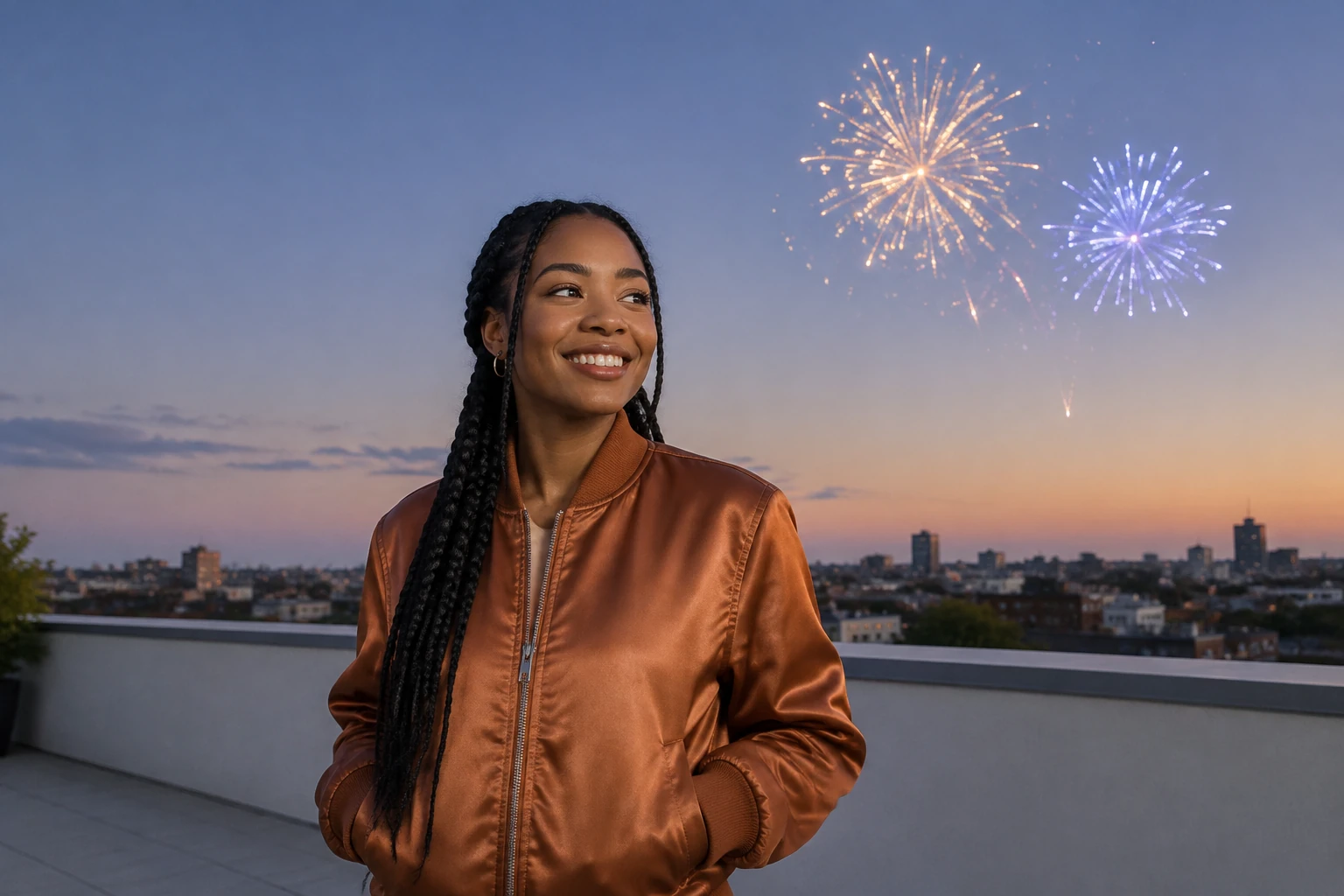
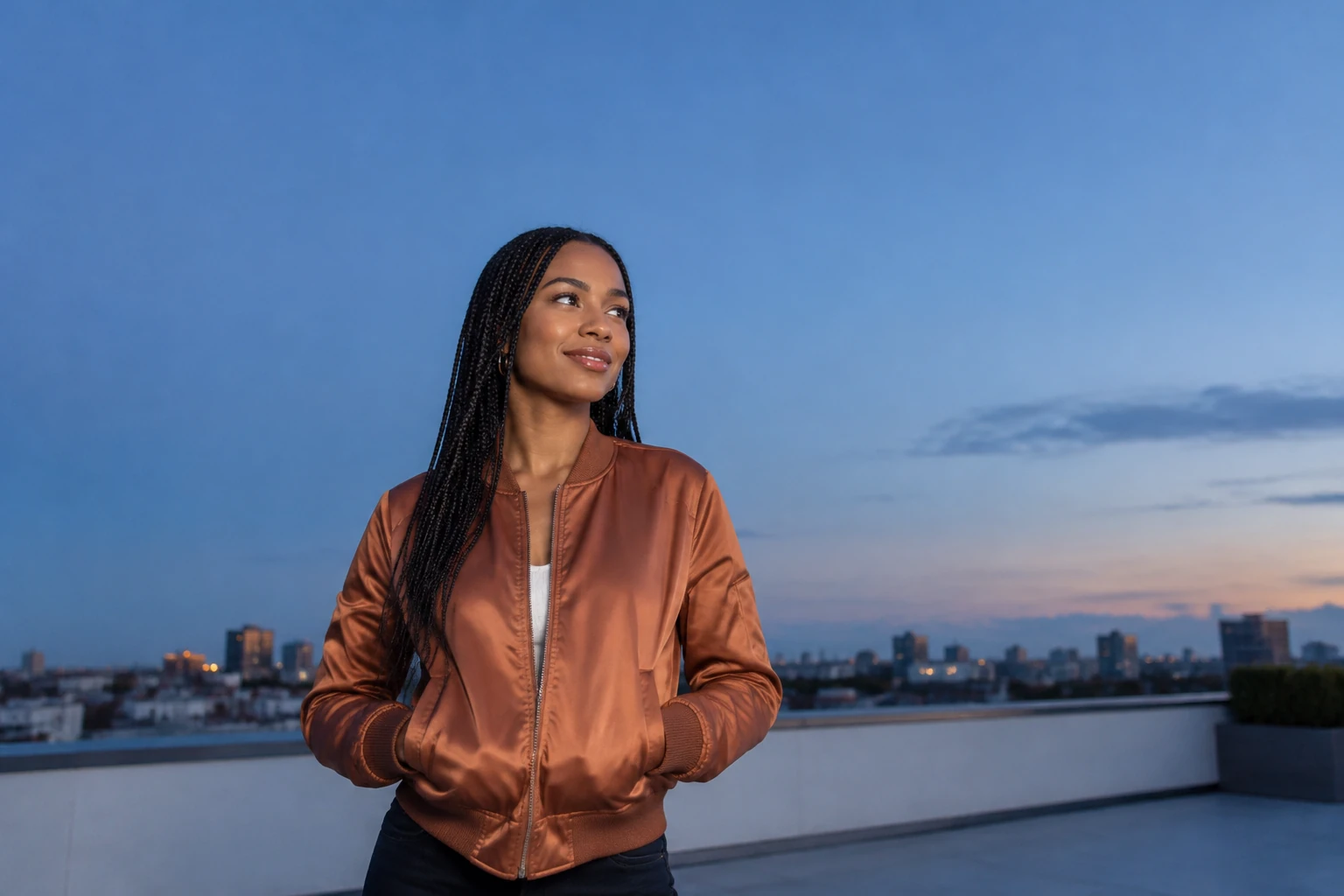
A strong Fireworks Video Effect can begin with one composed person and let the sky supply the rhythm. This guide uses an original rooftop-party concept: a fictional adult woman with dark braids and a copper-colored bomber jacket stands against a distant, anonymous city skyline as a few amber and indigo fireworks rise, open, and fade. Keep the camera and subject nearly still, so the short burst sequence feels celebratory without crowding the scene.
Watch fireworks timing and sky framing
Create your Fireworks video
Choose a route
Use Text to Video to describe an original scene without uploading a file, or Image to Video to work from one uploaded photo and an editable prompt. The form offers the available duration, resolution, ratio, and audio options.
Set a readable scene
For Image to Video, choose a clear portrait with open sky and enough space above the subject. For either route, describe trails rising behind the person, a few expanding bursts, and a quiet fade.
Keep the opening composed
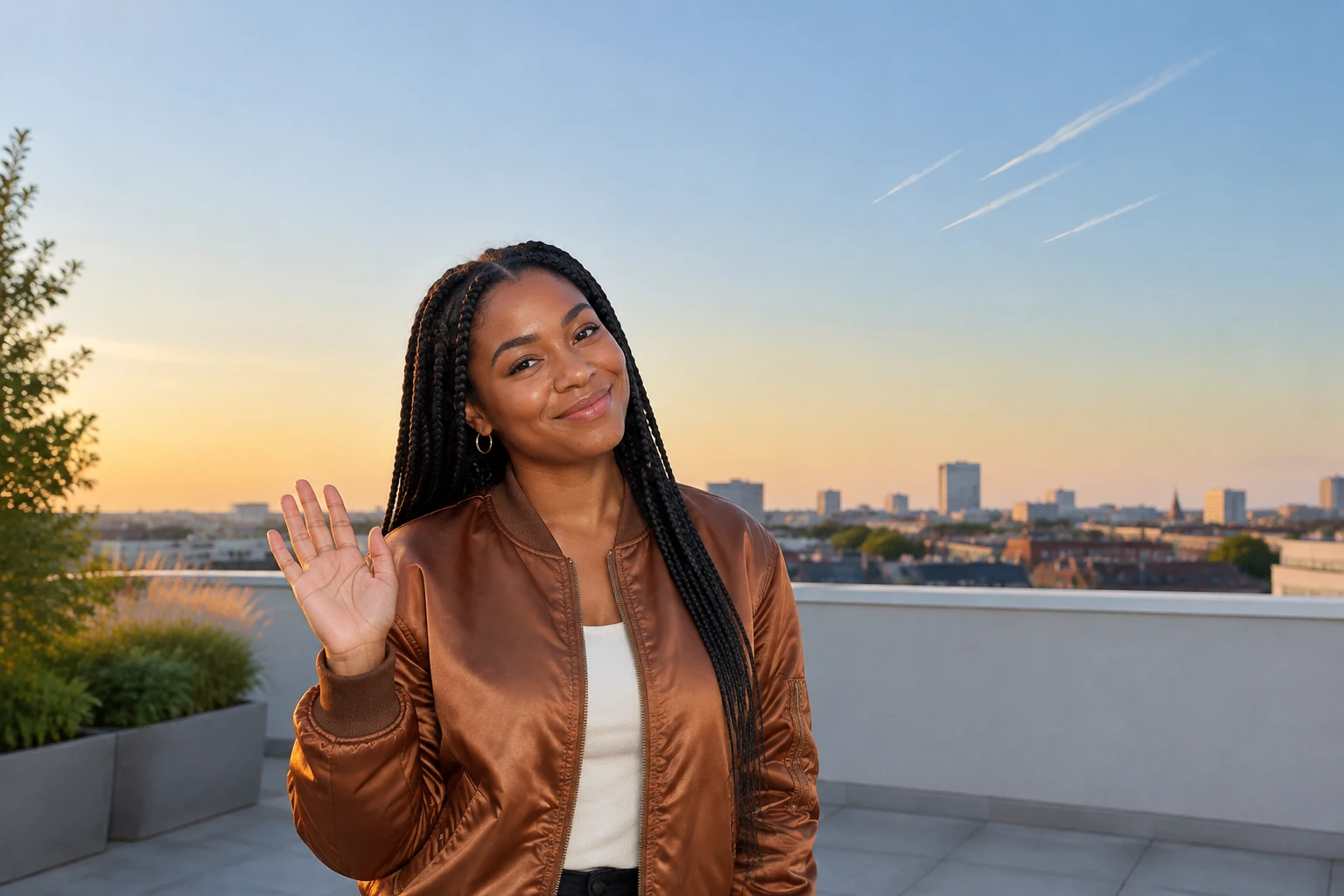
Ask for a nearly still camera and minimal subject movement, such as a restrained greeting. A steady face and sparse background help the fireworks provide the rhythm rather than overwhelm the party opening.
Review and refine
Play the whole clip and check the face, hands, exposure, burst timing, sound, and crop. If something needs adjustment, revise one variable at a time and review the new result.
Build the rhythm with a short burst sequence
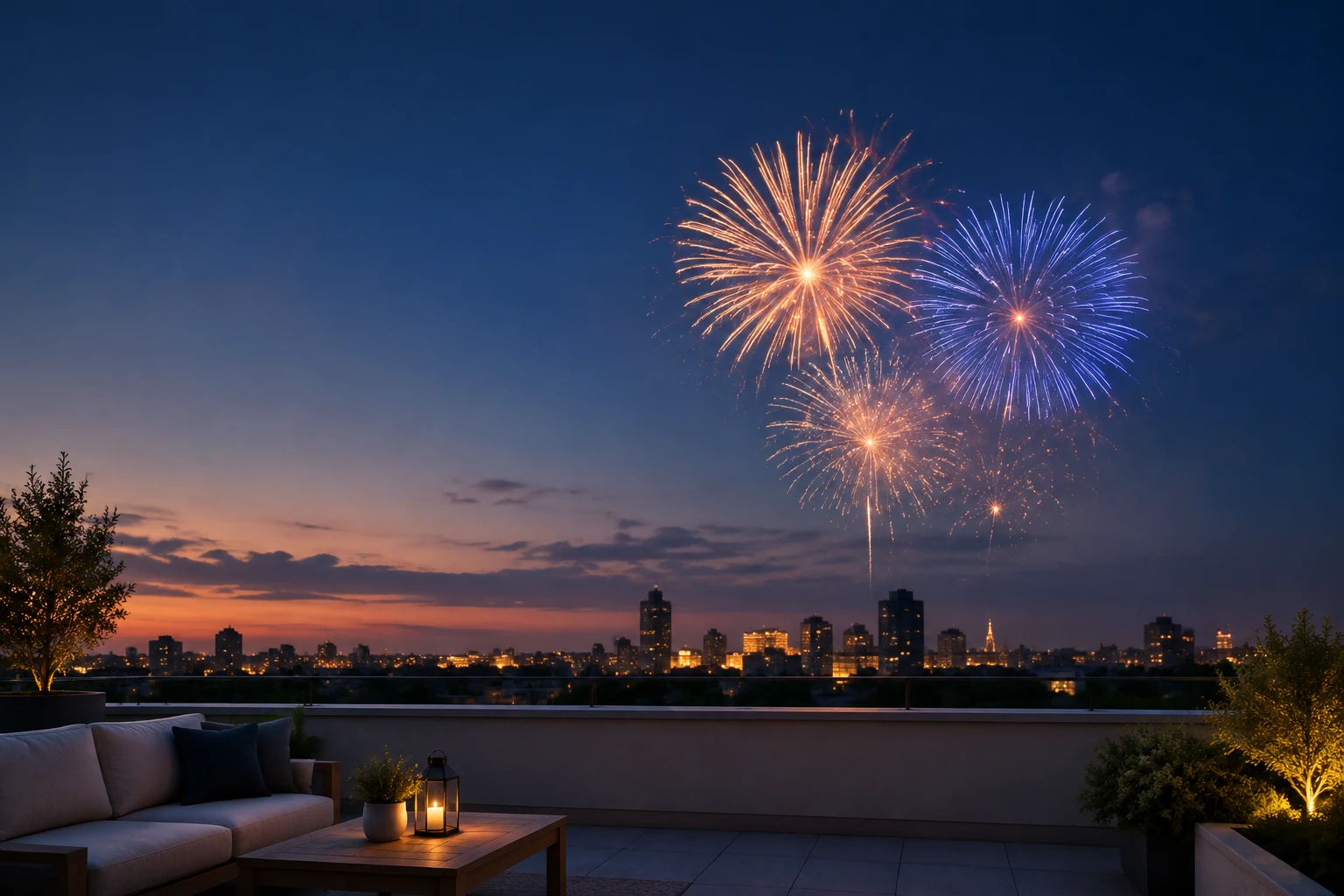
Think of the fireworks as a simple visual beat: trails rise, a few bursts open, then the sky settles. The rooftop example uses amber and indigo against a distant low skyline, but the prompt is a guide to composition, not a required scene. Avoid filling every moment with effects. A quiet ending gives the opening room to land and keeps attention on the person.
Choose text or one-photo generation
Text to Video starts from an editable description and does not require an uploaded file. Image to Video takes one uploaded photo and an editable prompt. Its prompt should adapt the photo’s actual subjects, clothing, and framing—not replace them with the rooftop example. In both cases, describe fireworks behind people and keep camera movement restrained. The page adds themed prompt defaults to the existing Seedance 2.5 form; it does not add a new preset, layer editor, mask, timeline, or existing-video upload.
Check the full clip, not just the opening
A promising first frame is not enough to judge the sequence. Watch from beginning to end for changes in the face or hands, exposure shifts, bursts that appear too early or overlap, audio that does not suit the scene, and a crop that cuts into the subject or skyline. The form shows a quote beside Generate. If a result needs work, change one prompt detail or available form option at a time, then review the complete clip again.
Keep the final mood clear
The strongest party opening can remain simple: a readable subject, a clean view of the sky, a handful of distant bursts, and a calm fade. Treat the prompt as direction rather than a guarantee of exact identity or motion. After generation, assess whether the result fits your intended use and make any further editing—such as adding names or music—in a separate editing workflow.
Fireworks questions
What does the Fireworks Video Effect guide help me make?
It helps you plan a video scene with fireworks rising, bursting, and fading behind a subject. The guide’s example is a restrained rooftop party opening with one nearly still person and a short burst sequence.
Can I use one photo, or do I need to write a text prompt?
You can choose Text to Video with an editable prompt and no uploaded file, or Image to Video with one uploaded photo and an editable prompt. Use the route that fits your starting material.
Are there credits or a free option?
Eligibility and any credit requirements depend on the options currently shown for your account. Check the form before generating; the quote appears beside Generate. This guide does not promise free credits or a fixed price.
How long will generation take, and where can I check progress?
Wait time can vary, so there is no fixed time-to-result promise. Completed and pending tasks appear in History, where you can check their status.
Will the person stay identical, and what should I review?
Identity is not guaranteed to remain locked. Watch the entire clip and check the face, hands, exposure, burst timing, sound, and crop. If needed, revise one variable and review again.
Can I download the clip or add names and music?
Check the controls available for your completed task for download options. Add names, music, or other finishing edits in a separate editing workflow; this page adds themed prompt defaults, not a timeline or layer editor.
More ideas to explore
rapduos.com · Updated
See update history
- — A scene-specific guide to a rhythmic rooftop party opening, with text and one-photo prompt defaults, restrained fireworks direction, and practical full-clip review checks.