
Create an AI Day Of The Dead Pet Video
Make a quiet pet remembrance video
History
Loading history…
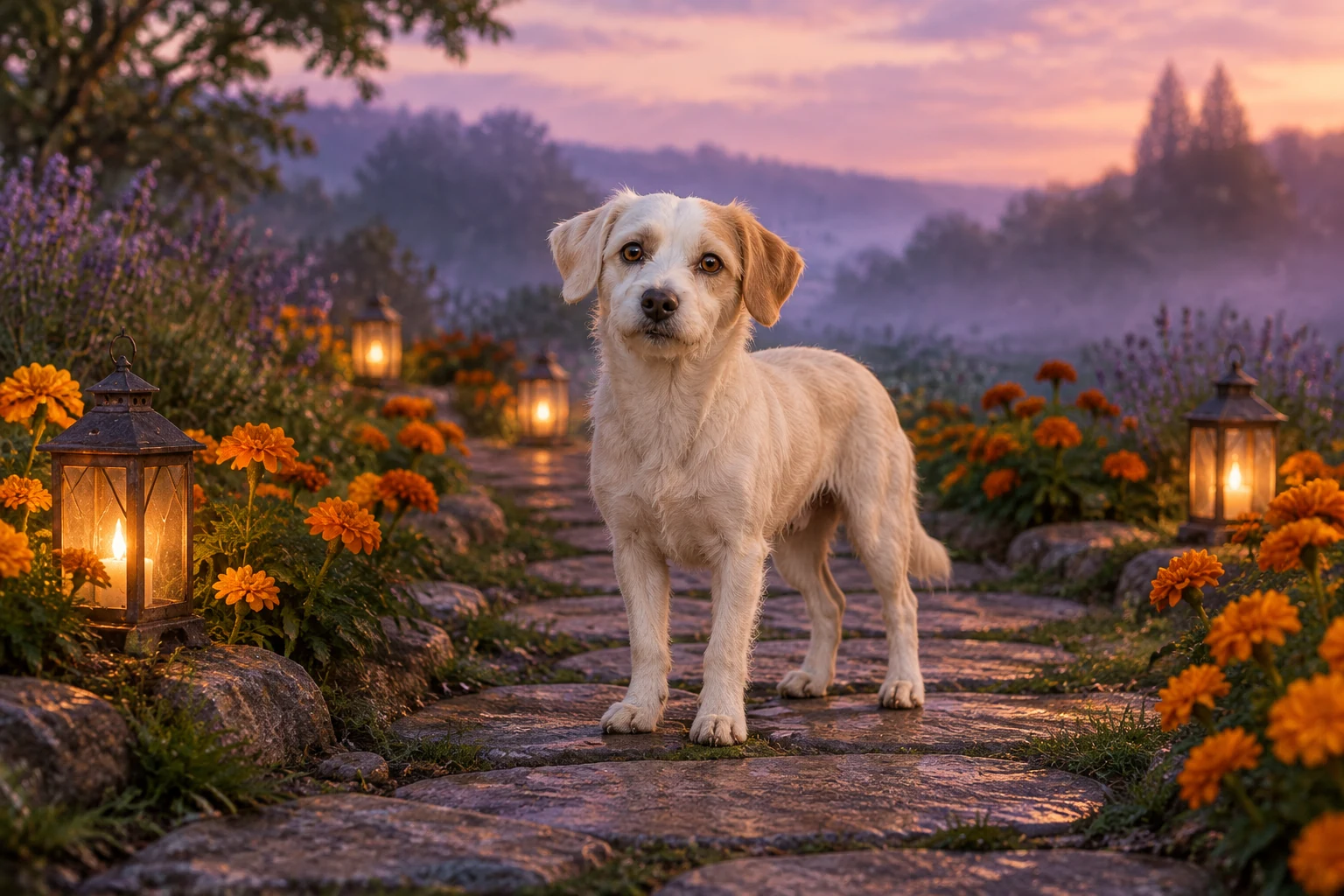
For a private, affectionate AI Day Of The Dead Pet Video, start with a simple moment: a dog arrives along a marigold-edged garden path, takes two small steps, and pauses at eye level. Choose Text to Video to describe a scene or Image to Video to work from one prepared pet photo. The guide below explains both prompt approaches and how to review the result.
Storyboard planning preview
Watch a real dog’s unhurried steps
Create your pet tribute video
Choose a creation mode
Text to Video starts from your written prompt and does not require an upload. Image to Video starts from one prepared pet photo. In either mode, use the editable prompt field and Try an example button as convenient starting points, then adjust the wording to suit your idea.
Set a simple, gentle action
Build the scene around a calm arrival, two small natural steps, and a pause. Keep the camera steady and low at the pet’s eye level. A single clear action is easier to review than a long sequence of movements or elaborate staging.
Review the panel and live credits
Seedance 2.5 offers the duration, aspect, resolution, and audio options shown in the current panel. Review those controls rather than assuming a particular output setting. Check the live credits beside Generate before submitting, then follow the request status in History.
Inspect the result and refine
Check the ears, eyes, coat, paws, and tail throughout the motion, especially if you used a reference image. If movement or details look unclear, simplify the prompt and try a more restrained action. Audio follows the live controls; personal text or music editing, if wanted, is a separate choice.
Choose the right starting point
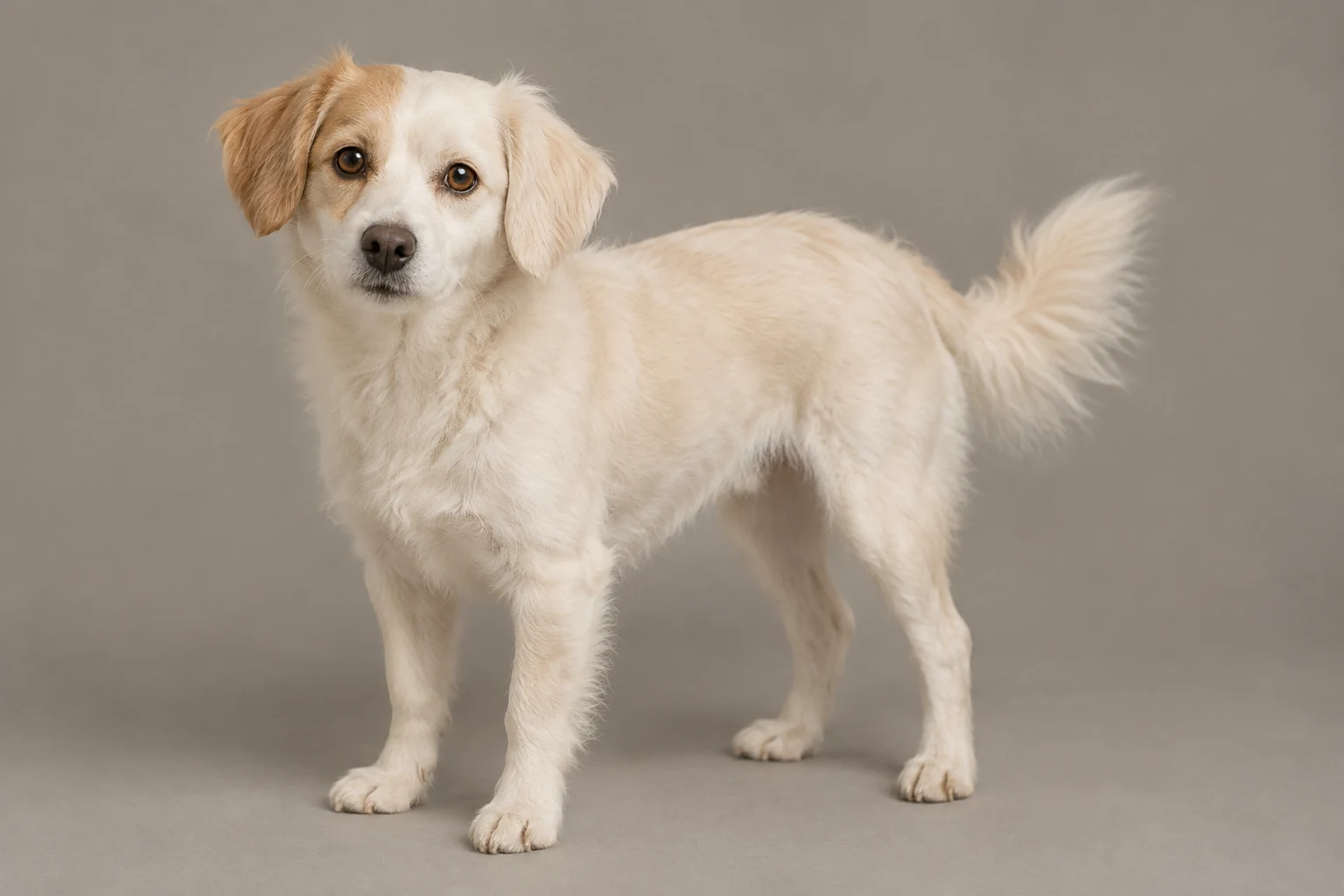
Use Text to Video when you want to describe the entire scene from scratch. For the example here, that means specifying one small cream-colored mixed-breed dog with soft floppy ears, a light tan patch over its left ear, amber-brown eyes, and four cream paws. Use Image to Video when you want to start from one pet photo instead. That mode should adapt the supplied animal rather than substitute the fictional example dog.
Prepare a useful pet photo
Choose one clear image with a single dog or cat, good light, and a view that makes the face and body easy to see. Avoid a crop that cuts off important features if you want to judge the animal’s movement later. In the editable Image to Video prompt, describe the gentle setting and camera approach while asking that the photo’s actual species, face, markings, ears, body, leg count, and any visible collar remain consistent.
Keep the prompt easy to follow
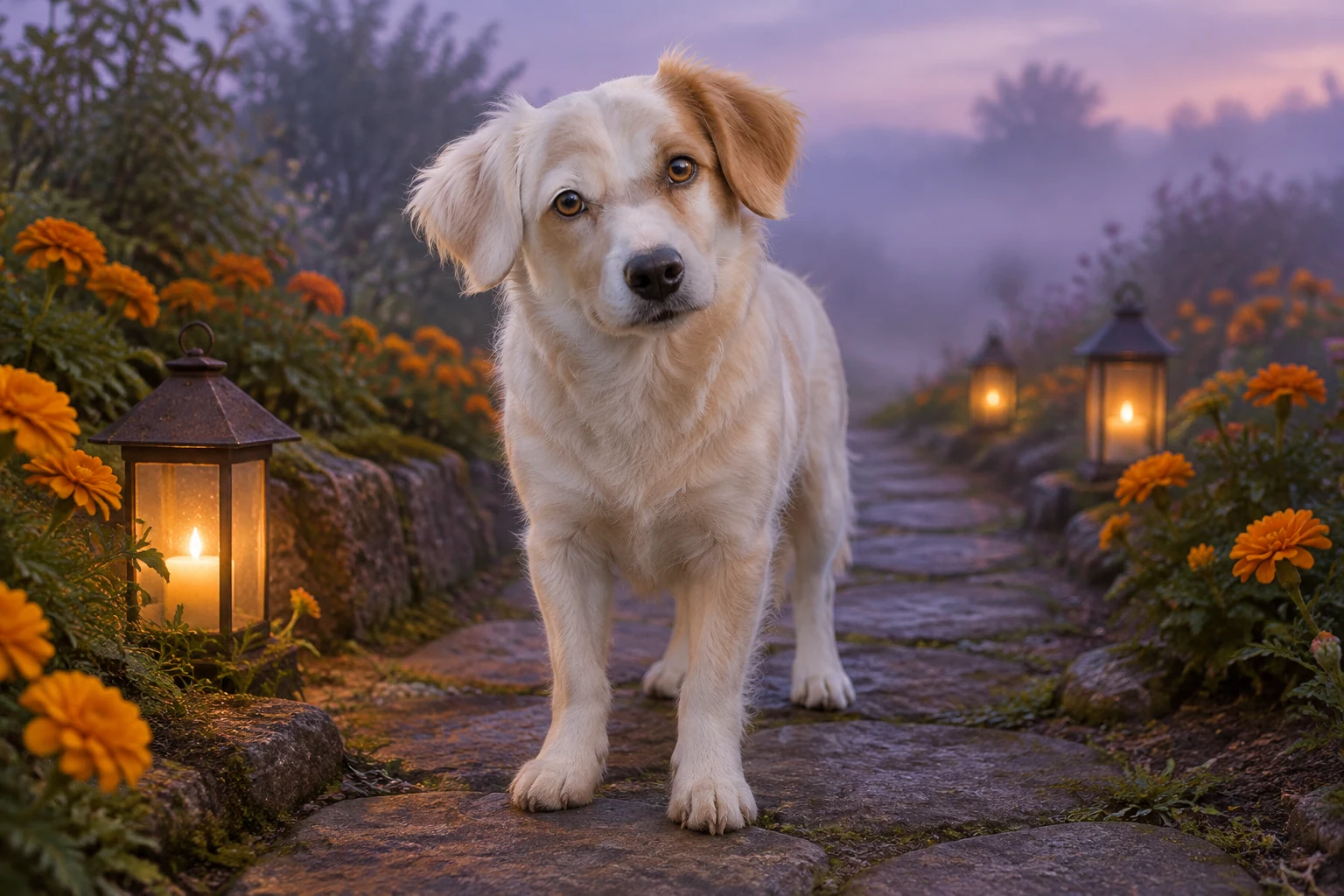
A compact prompt can cover the subject, setting, movement, and camera in a few sentences. The garden idea uses orange marigolds, warm covered lanterns, a low stone path, and lavender twilight mist, but the action stays modest: a calm arrival, two small steps, and a pause in one steady low eye-level shot. If a draft includes several actions or competing visual directions, remove details until the main moment is clear.
Frame the result thoughtfully
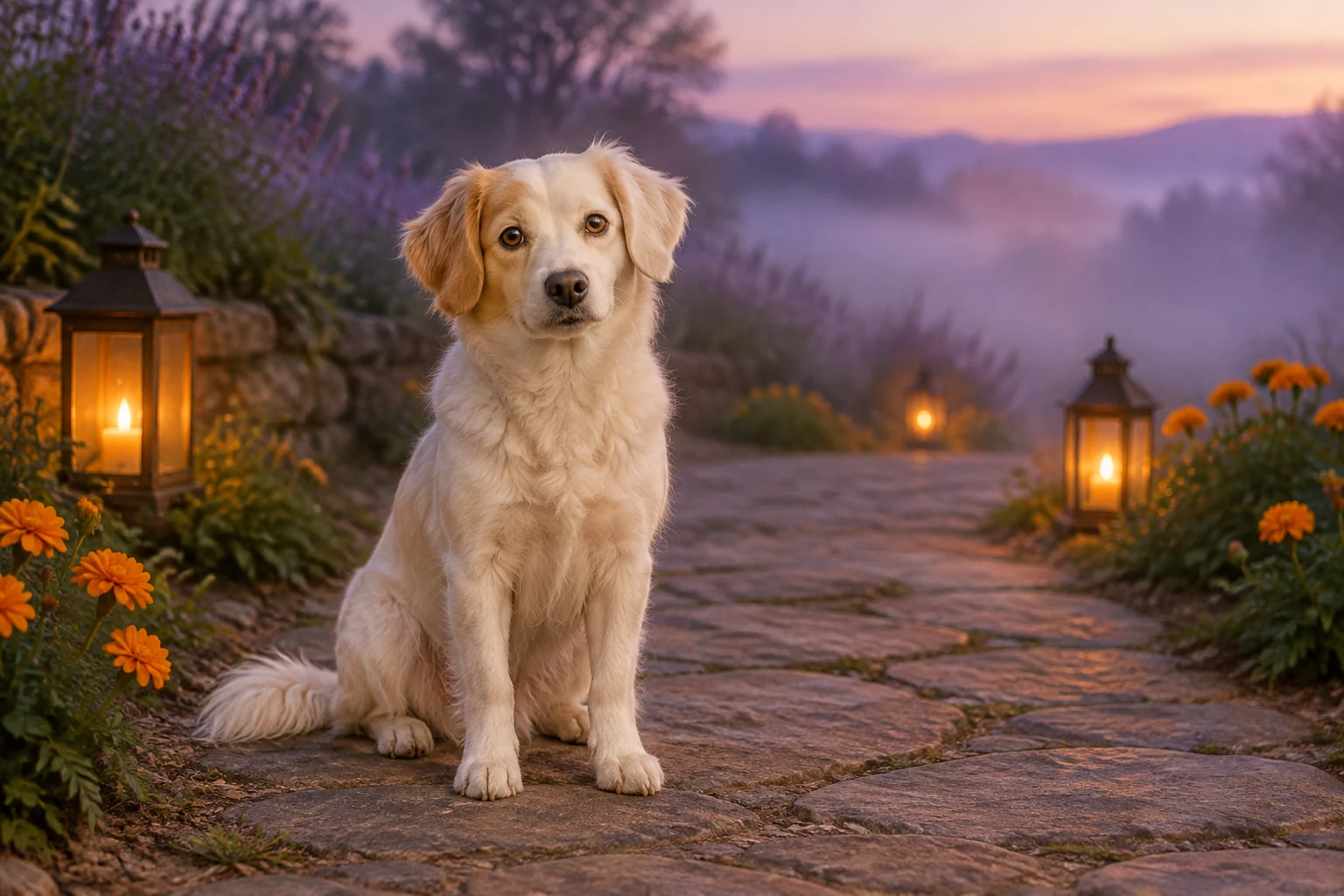
Treat the video as an imagined creative remembrance, not recovered footage or a real visit. There is no guarantee of exact identity or a particular emotional response. Keep the focus on a small, affectionate scene that feels appropriate to your own remembrance, and use the available audio controls only if sound suits your preference.
Pet tribute questions
Can I generate without a photo?
Yes. Choose Text to Video and describe the pet and scene in the editable prompt.
Can I animate a pet photo?
Yes. Choose Image to Video and supply one prepared pet photo. Write the prompt to preserve the animal shown.
Can I use a cat photo?
Yes. For Image to Video, ask the prompt to preserve the supplied cat’s actual features rather than describing the example dog.
Which duration and resolution should I expect?
Options depend on what the current Seedance 2.5 panel shows. Review the live controls before generating.
Where can I check a request?
Check the live credits beside Generate before submission and view the request status in History.
Does the storyboard preview show a generated walk?
No. It is a silent planning clip made from three still planning frames, not a generated animal walk.
More ideas to explore
rapduos.com · Updated
See update history
- — Added a pet-remembrance video guide with one-photo and text workflows, separate editable prompts, four theme illustrations, a silent planning preview, and a motion-review checklist. Added a pet-remembrance video guide with one-photo and text workflows, separate editable prompts, four theme illustrations, a silent planning preview, and a motion-review checklist, plus a filmed pet-motion reference and its matching cover.