
Seedream 5.5
Seedream 5.5 music-cover still-life prompts

History
Use Seedream 5.5 to plan a music-cover still with clear space for a title. The burgundy notebook example keeps the subject low in the frame and uses warm sidelight to reveal its edges and cream band. Generate a new composition from words, or supply one photo for a focused wall-color edit.
Plan and refine your H3 image
Choose the image mode
For a new scene, select Text to Image, enter an editable prompt, and upload nothing. For a targeted change, select Image to Image, supply one actual reference, and describe the edit in an editable prompt. The native menu may show other models, but this guide uses the enabled Seedream 5.5 model.
Plan the cover composition
Name the subject, surface, wall, lighting, and framing. For a music cover, say where the object sits and how much clear space the title needs. Keep the subject description concrete: include the band, corners, paper edge, and desk contact when those details matter.
Make one narrow reference edit
Use a clear image of the actual object or scene you want to keep. State the single change first, then specify what must remain: the reference's own subject, layout, colors, materials, camera, and light. Here, the requested change is only the wall hue to deep navy; do not substitute the example notebook.
Review the ready image
Check the composition and title margin, then inspect proportions, materials, elastic-band continuity, book corners, paper edge, and stable contact. For a wall edit, look for color spill or changes to the subject, lighting, or nearby surfaces. Reject unwanted text or symbols. History shows generation status and ready images.
Set up a still image with room for a title
A cover image needs both a subject and usable negative space. Put the notebook low in the frame and describe the empty area above it explicitly instead of hoping it appears. The sample scene pairs a closed burgundy hardback with a plain cream band, softly rounded corners, a dark walnut desk, and a pale sage wall. Warm side light should show the physical details without competing with the blank title margin. Describe the scene in ordinary visual language; no lettering or symbols are needed.
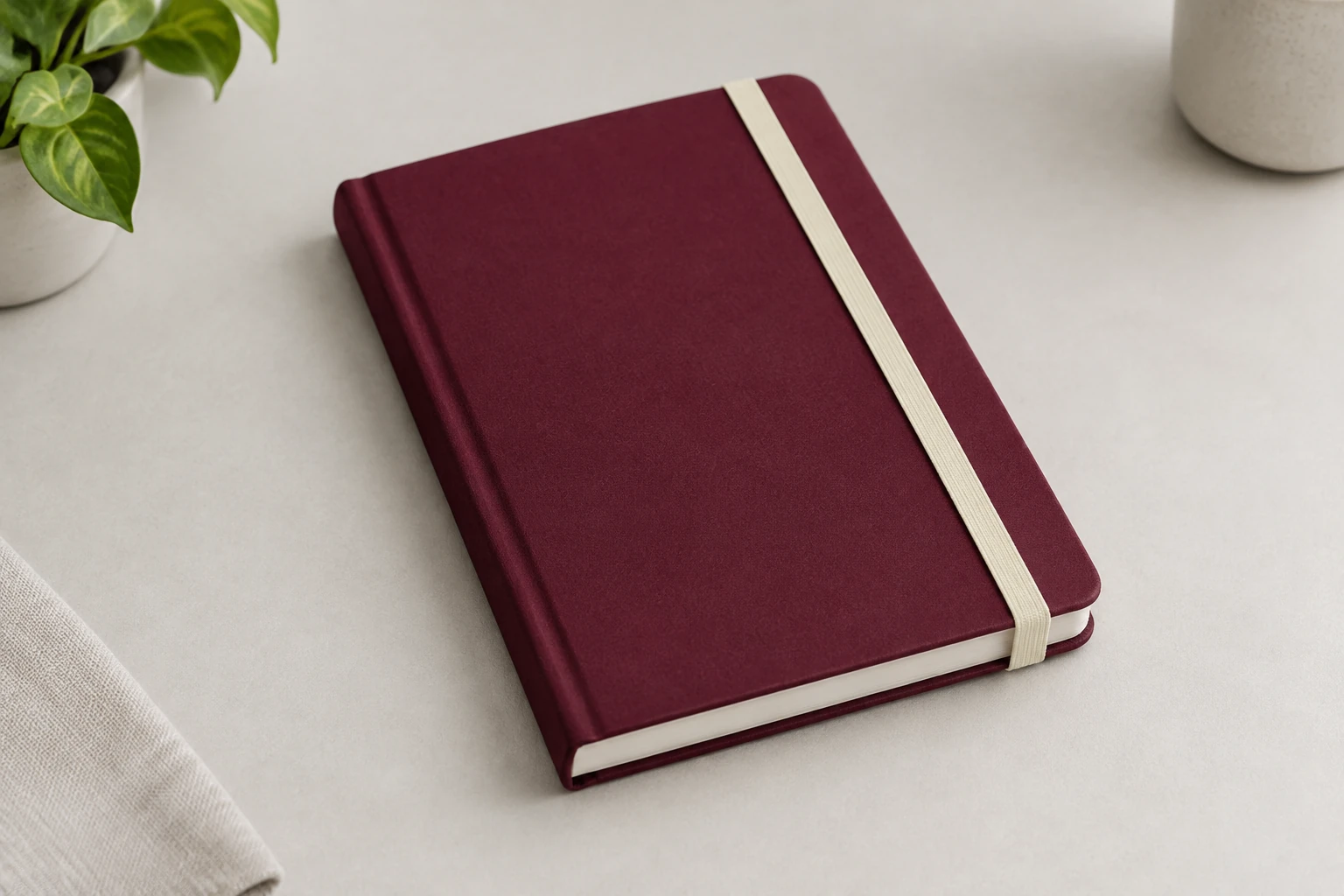
Edit the supplied image without replacing it
A focused edit starts with one suitable reference, not a substitute scene. Choose an image where the wall and its boundary with the subject are visible. Ask only for the wall hue to become deep navy, and explicitly preserve the reference's own object, colors, positions, materials, camera, and lighting. Avoid adding a new notebook, changing the crop, or requesting several unrelated improvements at once. After generation, inspect the wall boundary and nearby surfaces for unintended changes.
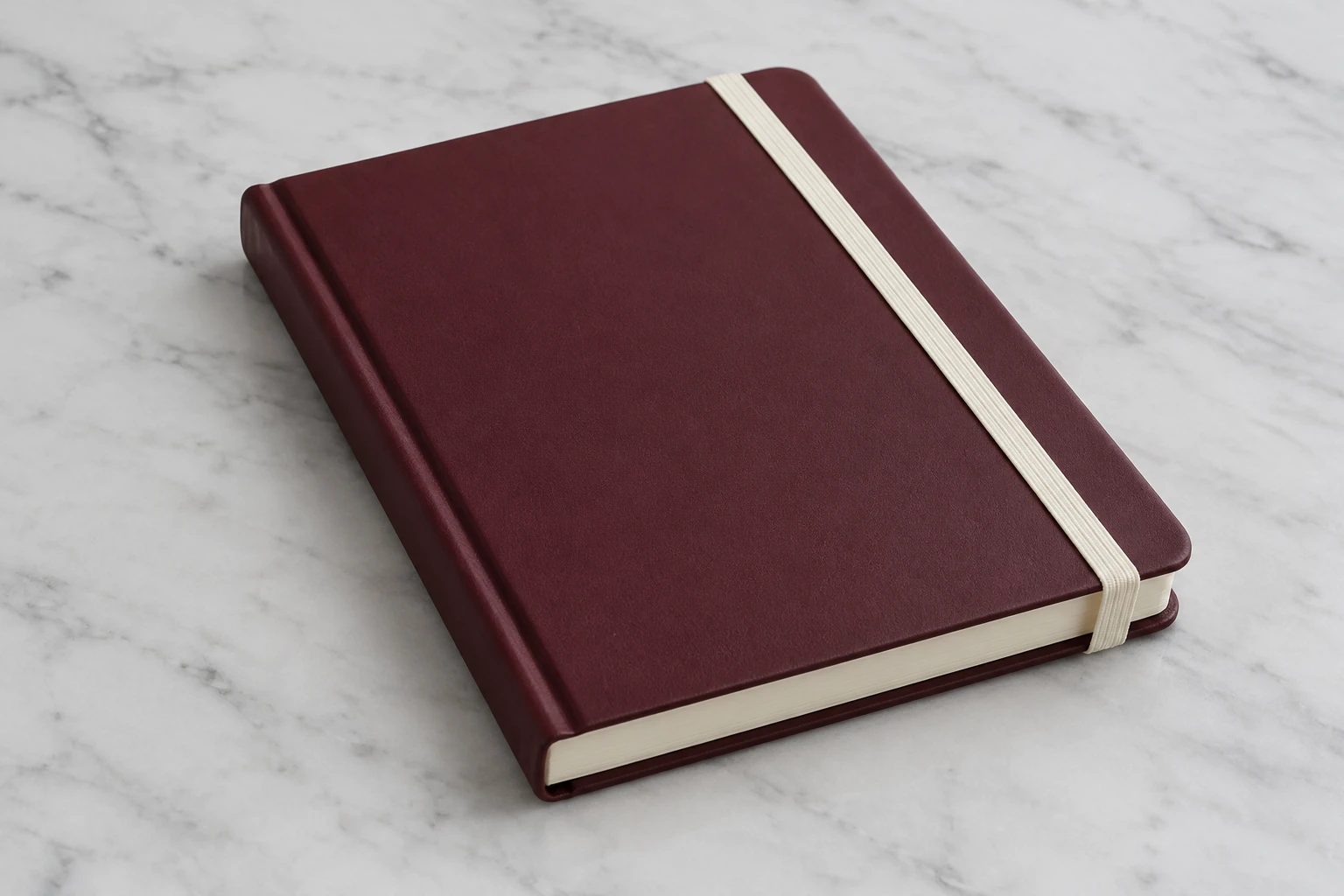
Check details and account requirements
Look beyond the overall composition. Confirm that a visible elastic band remains continuous, rounded book corners still meet the cover naturally, the paper edge reads as part of the book, and the object rests stably on its surface. Check proportions, material cues, light, and any unwanted text before using a ready image. Model, aspect-ratio, and resolution settings determine the live Required Credits shown in the interface. This model has no free-eligible account access here: check paid eligibility and the current quote before selecting Generate. No fixed cost or free allowance is promised.
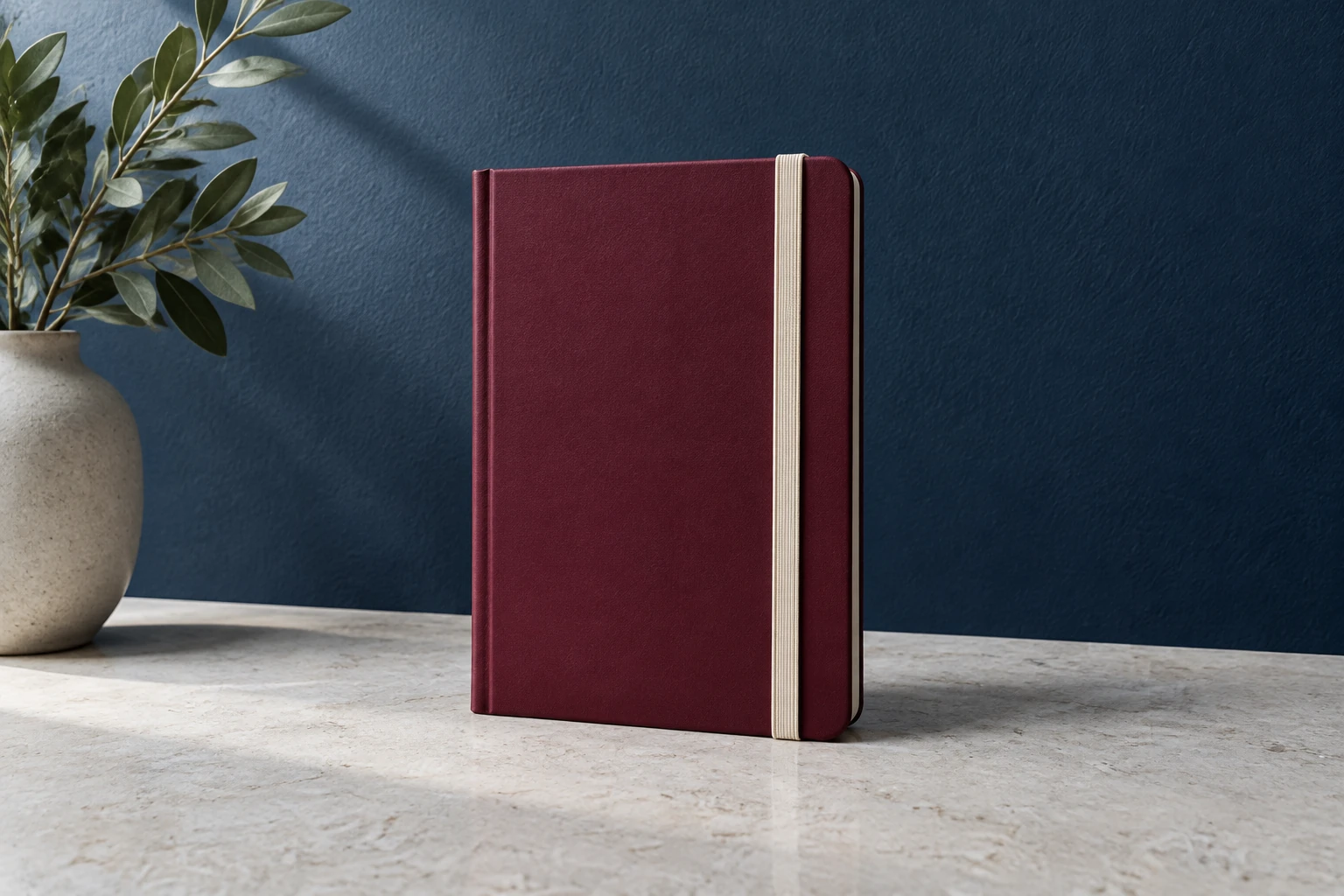
Find the result and decide what to do next
Generation time can vary; this guide does not promise a fixed wait. Use History to see status and open ready images. The guide covers still-image generation and editing only, not lyrics, audio, or performance. If the result is close but not usable, refine the prompt around one visible issue—such as title space or a wall boundary—and review the updated image rather than assuming the change succeeded.
Seedream 5.5 questions
What does Seedream 5.5 do in this guide?
It is the enabled image model named in this site's public catalog. The guide uses it to generate or edit still images, such as music-cover concepts; it does not create lyrics, audio, or performances.
How many references can I use?
Text to Image has an editable prompt and zero uploads. Image to Image uses one supplied reference and an editable prompt.
Can I use it for free, and what will generation cost?
This model has no free-eligible account access here. Check paid eligibility and the live Required Credits quote before Generate; model, aspect ratio, and resolution settings determine that quote. There is no fixed cost stated in this guide.
How long should I wait, and where is my result?
No exact wait is promised. Check History for generation status and ready images.
What makes a useful reference for the wall edit?
Use one actual image where the subject, wall, and their boundary are clear. Request only the wall hue change, and name the reference's own visible subject, layout, colors, materials, camera, and light as details to preserve.
What should I check before using a ready image?
Review composition, proportions, materials, lighting, and unwanted text. For a notebook still life, check band continuity, corners, paper edge, and stable contact; for the edit, also look for spill or changes beyond the wall.
More ideas to explore
Explore AI video effects
See the site's separate guide to AI video effects; this Seedream 5.5 page covers still images.
Browse AI video tools
Visit the site's AI video section for video-focused tools and guides.
Pricing and account options
Review available plans and account options before starting a paid image task.
rapduos.com · Updated
See update history
- — Added a cover-art still-image guide with four original notebook studies, two editable starter prompts, zero-upload generation, one-reference wall-color editing and title-margin checks.