
How to turn a photo into an AI video effect
Pick an effect, customize the motion and keep your prompt focused on one clear idea.
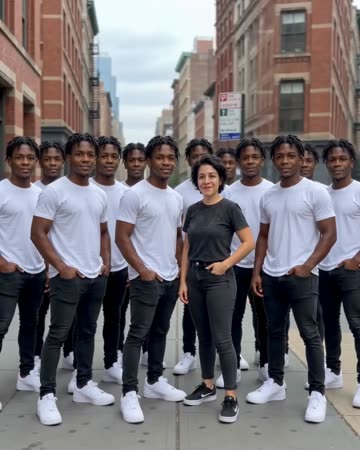
Start with one clear idea
A good effect prompt explains what changes and what stays recognizable. Earth Zoom changes the camera view. Clones adds more versions of the person. Money Rain adds motion around the subject. Start with one effect instead of combining several transformations in a short clip.
Choose an effect preset
Open Video Effects, or switch the homepage studio to Effects Video. Selecting a preset fills the prompt; it does not submit a generation or spend credits. Read the prompt and adapt the setting or action to your photo.
Add a useful reference
Choose a clear photo of the subject. Use one photo for a solo portrait or a picture containing both people. If you use two portraits, check both local previews before continuing. A clean composition makes it easier to describe the intended motion.
Keep the prompt focused
For clones, try: "Copies of the person in the reference photo step out one at a time and stand together on a quiet street. Keep the face and outfit consistent. Use a steady camera."
For Earth Zoom, describe a smooth pullback and the final view you want. These are creative instructions, not separate dedicated models. The selected model determines which motions and details it can produce.
Review before you generate
Check the available model, duration, aspect ratio and credit quote. Effects are prompts, so a showcase may differ from your result. Avoid assuming that a clip will reproduce an exact reference movement.
Sign in when ready to upload and submit. Follow the job in your history and download the successful result. If the effect is unclear, simplify the action and remove conflicting camera instructions before trying again.